DigitalHeaven Studio
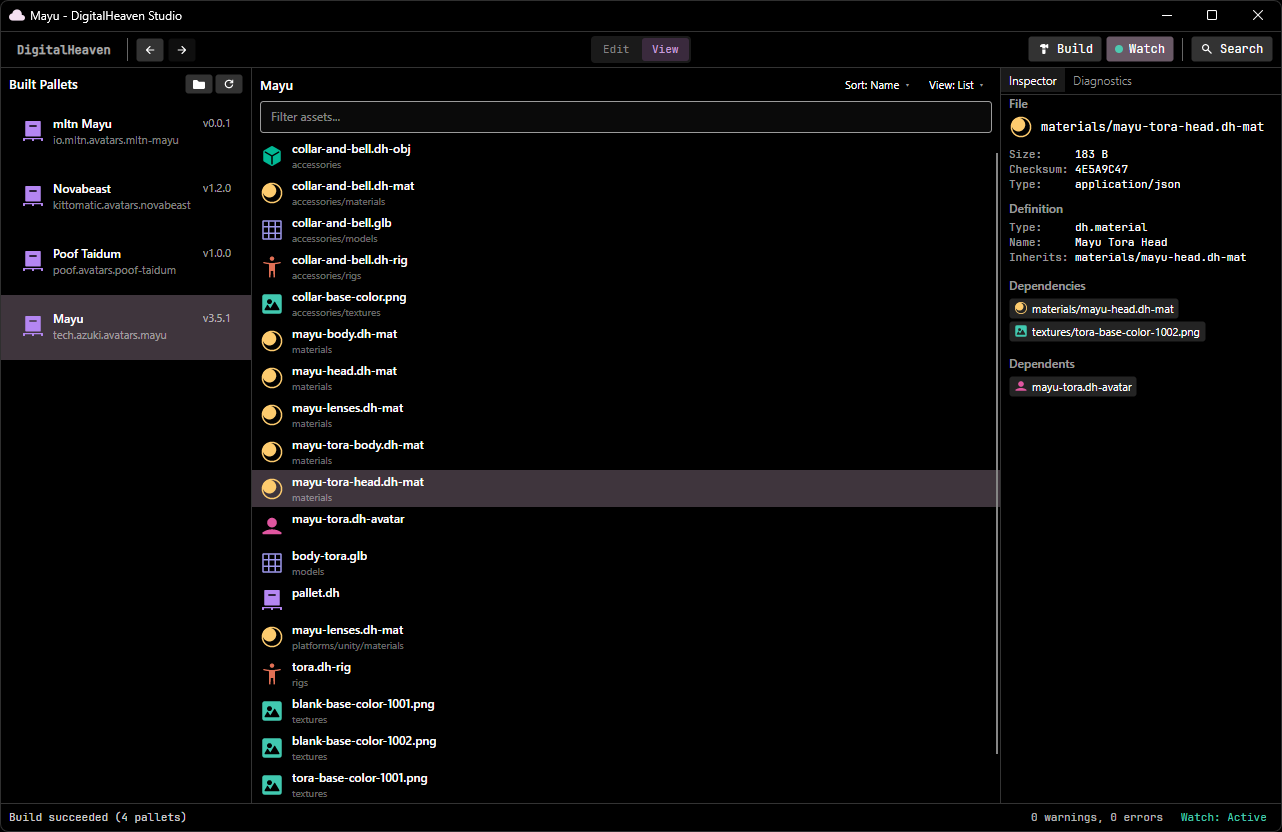
DigitalHeaven Studio is a graphical application for browsing, editing, and building pallets. It provides the same build pipeline as the CLI in a visual interface with an asset browser, inspector, and real-time diagnostics.
Workspace Setup
Section titled “Workspace Setup”On first launch, Studio shows a Welcome dialog to configure your workspace:
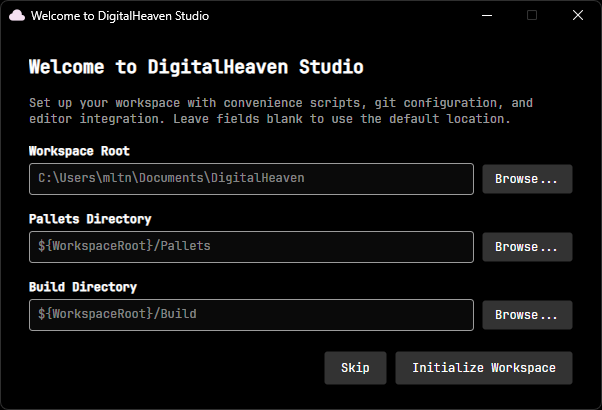
| Field | Default | Description |
|---|---|---|
| Workspace Root | Documents/DigitalHeaven | Root directory for all DigitalHeaven data |
| Source Directory | ${WorkspaceRoot}/Source | Where source pallets live |
| Pallets Directory | ${WorkspaceRoot}/Pallets | Where compiled .pallet files go |
Click Initialize Workspace to create the directory structure and generate templated files (.gitignore, .gitattributes, convenience scripts, the Blender FBX conversion script, etc.). Click Skip if you already have an existing workspace and don’t want to re-generate these files.
This configuration is shared across all DigitalHeaven tools. Changing the workspace root in Studio also changes it for the CLI, game mods, and anything else that reads dh-config.jsonc.
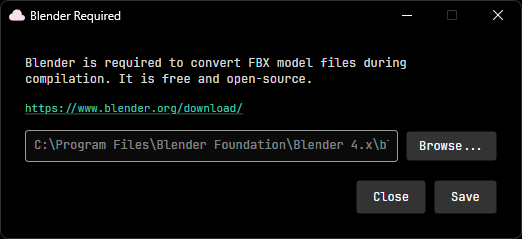
If you build a pallet that contains .fbx models, Studio will prompt you to set a Blender path for FBX-to-GLB conversion. This is the same requirement as the CLI; see Setup: Creating Pallets for details.
Studio has two modes, toggled with the Edit / View buttons in the top toolbar:
- Edit mode works with your source pallets in the
Source/directory. This is where you browse and organize your source files. - View mode works with built pallets in the
Pallets/directory. This is where you inspect compiled output.
Layout
Section titled “Layout”The interface is split into three panels:
Pallet List (left)
Section titled “Pallet List (left)”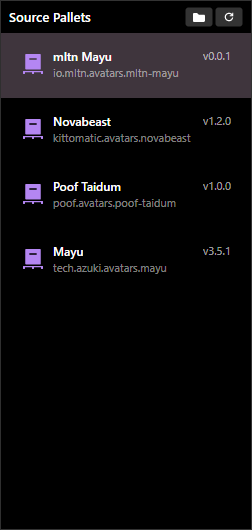
Lists all pallets found in the current directory (source pallets in Edit mode, built pallets in View mode). Each entry shows the pallet’s display name, version, and full ID.
Click a pallet to select it and load its assets in the center panel. The folder icon opens the pallets directory in your file explorer, and the refresh icon rescans for changes.
Asset Browser (center)
Section titled “Asset Browser (center)”Displays the contents of the selected pallet. Two view modes are available via the View dropdown:
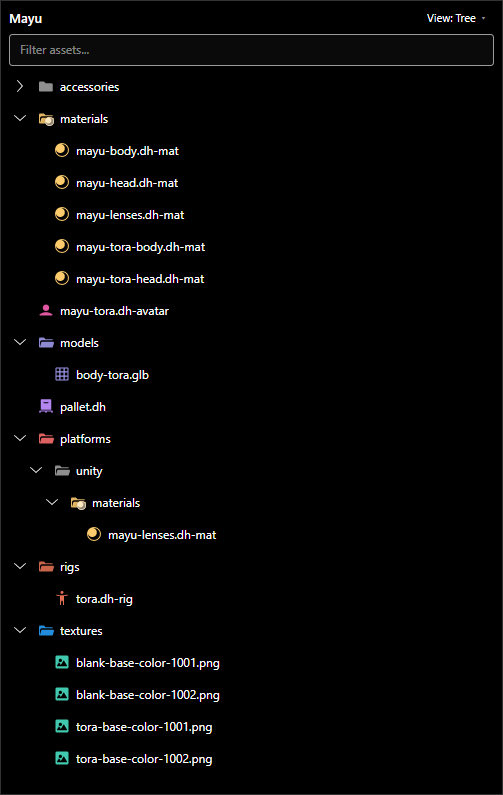
- Tree: shows the directory structure as a collapsible tree with folders and files
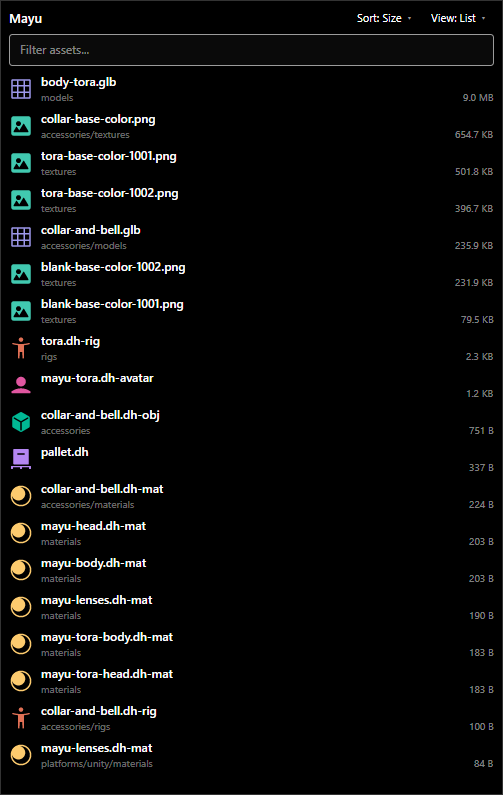
- List: shows all assets in a flat list, sortable by name or size
A Filter assets search bar at the top lets you filter by filename.
Tree view shows the full directory hierarchy with expandable folders:
List view shows all assets flat, sortable by name or size:
Inspector (right)
Section titled “Inspector (right)”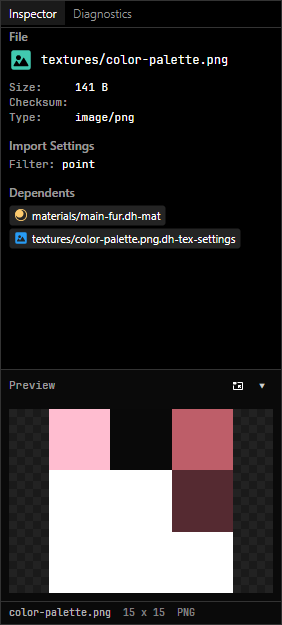
Shows metadata for the selected asset: file path, size, checksum, MIME type, import settings, and a list of dependents (other assets that reference this file).
The Preview drawer at the bottom displays a visual preview of the selected asset. Clicking the pop-out button opens the preview in its own window. The preview window is locked by default (indicated by the lock icon), meaning it stays on the current asset even as you browse; unlock it to have it follow your selection.
The gear icon (⚙) in the preview header opens Preferences to the Preview category, where you can configure 3D model rendering:
| Setting | Options | Description |
|---|---|---|
| Display Mode | Shaded, Unlit, Wireframe | How the model is rendered — lit with shading (default), flat base color only, or wireframe edges only |
| Wireframe Overlay | On / Off | Draws dark wireframe edges on top of the shaded or unlit model |
| Lighting Preset | Default, Front, Top, Side, Rim, Bottom | Direction of the key light (only applies in Shaded mode) |
Diagnostics (right)
Section titled “Diagnostics (right)”The second tab on the right panel. Shows the full build log with tagged entries: INFO for standard progress, NOTE for cache hits and optimization details, and warnings or errors if something goes wrong.
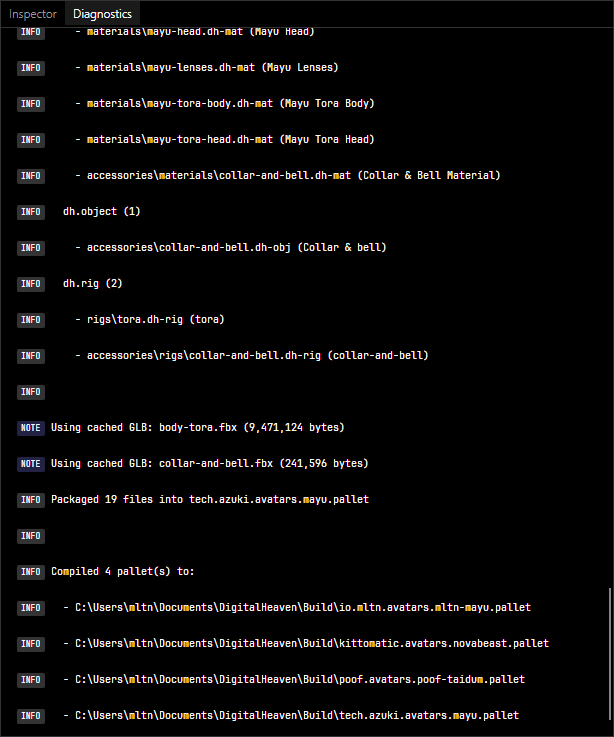
The log covers the entire build pipeline: definition parsing, reference validation, texture processing, model conversion, asset bundling, and final packaging. Each compiled pallet’s output path is listed at the end.
Building
Section titled “Building”The top toolbar has two build-related controls:

| Button | Description |
|---|---|
| Build | Compile all pallets (same as dh build) |
| Watch | Toggle watch mode for auto-compilation on file changes (same as dh watch) |
The status bar at the bottom shows the result of the last build: pallet count, warnings, errors, and whether watch mode is active. Build output is shown in the Diagnostics tab.
Navigation
Section titled “Navigation”
The back and forward arrows next to the DigitalHeaven logo in the top-left let you navigate through your browsing history, similar to a web browser.