DigitalHeaven Studio
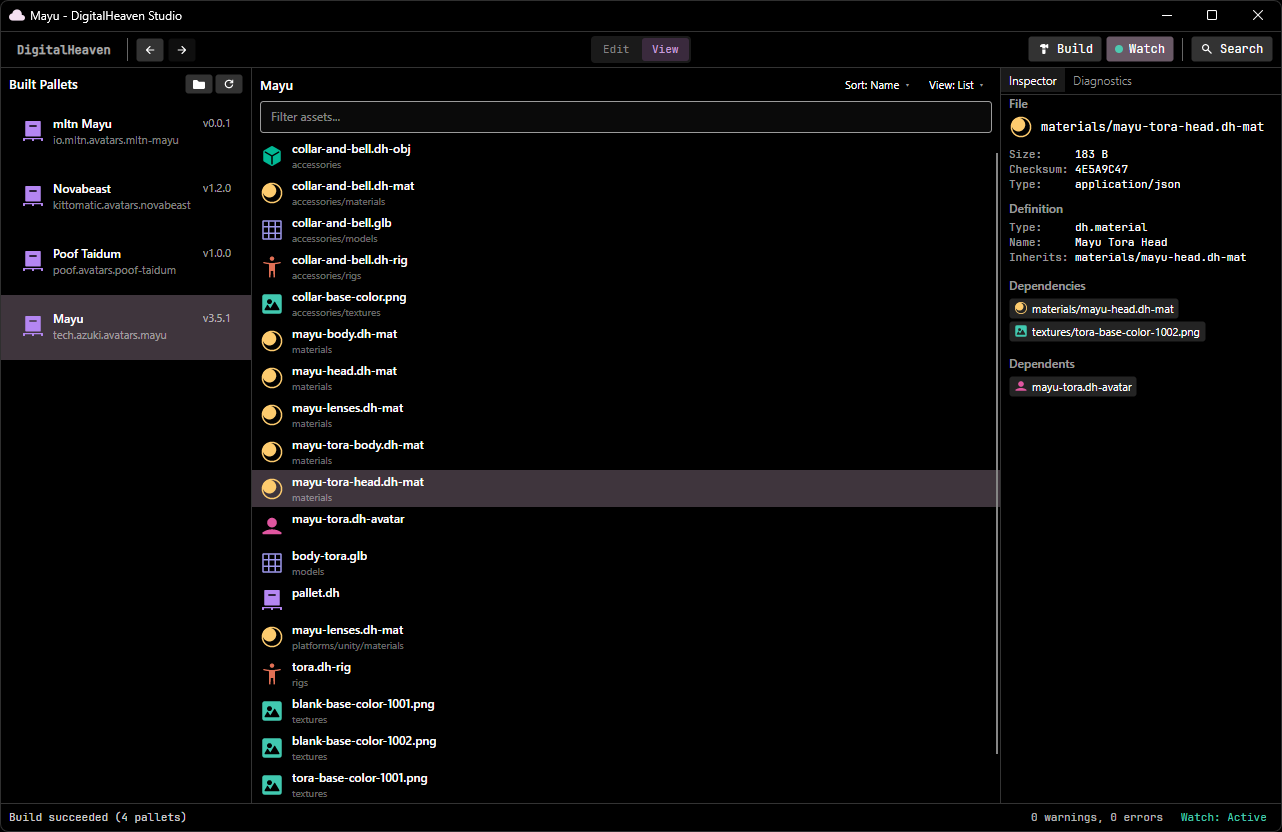
DigitalHeaven Studio is a graphical application for browsing, editing, and building pallets. It provides the same build pipeline as the CLI in a visual interface with an asset browser, inspector, and real-time diagnostics.
Workspace Setup
Section titled “Workspace Setup”On first launch, Studio shows a Welcome dialog to configure your workspace:
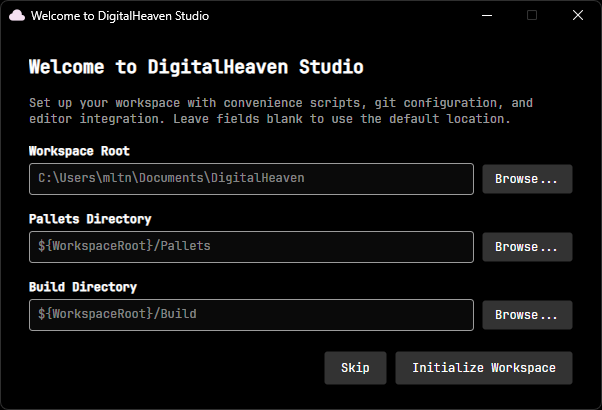
| Field | Default | Description |
|---|---|---|
| Workspace Root | Documents/DigitalHeaven | Root directory for all DigitalHeaven data |
| Source Directory | ${WorkspaceRoot}/Source | Where source pallets live |
| Pallets Directory | ${WorkspaceRoot}/Pallets | Where compiled .pallet files go |
Click Initialize Workspace to create the directory structure and generate templated files (.gitignore, .gitattributes, convenience scripts, the Blender FBX conversion script, etc.). Click Skip if you already have an existing workspace and don’t want to re-generate these files.
This configuration is shared across all DigitalHeaven tools. Changing the workspace root in Studio also changes it for the CLI, game mods, and anything else that reads dh-config.jsonc.
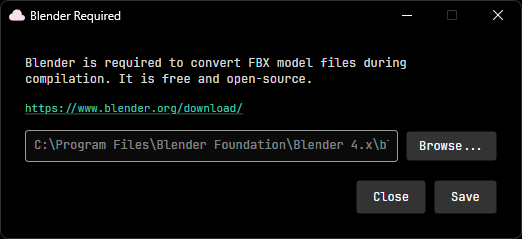
If you build a pallet that contains .fbx models, Studio will prompt you to set a Blender path for FBX-to-GLB conversion. This is the same requirement as the CLI; see Setup: Creating Pallets for details.
Studio has two modes, toggled with the Edit / View buttons in the top toolbar:
- Edit mode works with your source pallets in the
Source/directory. This is where you browse and organize your source files. - View mode works with built pallets in the
Pallets/directory. This is where you inspect compiled output.
Layout
Section titled “Layout”The interface is split into three panels:
Pallet List (left)
Section titled “Pallet List (left)”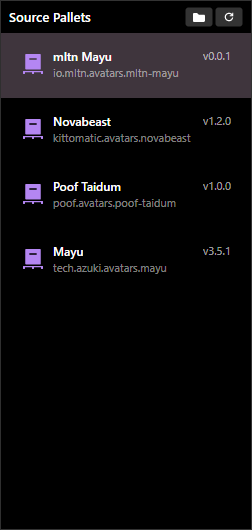
Lists all pallets found in the current directory (source pallets in Edit mode, built pallets in View mode). Each entry shows the pallet’s display name, version, and full ID.
Click a pallet to select it and load its assets in the center panel. The folder icon opens the pallets directory in your file explorer, and the refresh icon rescans for changes.
Asset Browser (center)
Section titled “Asset Browser (center)”Displays the contents of the selected pallet. Two view modes are available via the View dropdown:
- Tree: shows the directory structure as a collapsible tree with folders and files
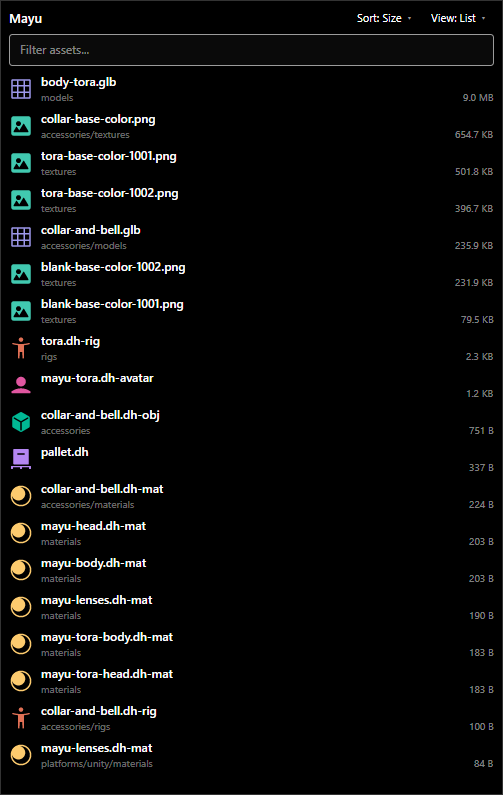
- List: shows all assets in a flat list, sortable by name or size
A Filter assets search bar at the top lets you filter by filename.
Tree view shows the full directory hierarchy with expandable folders:
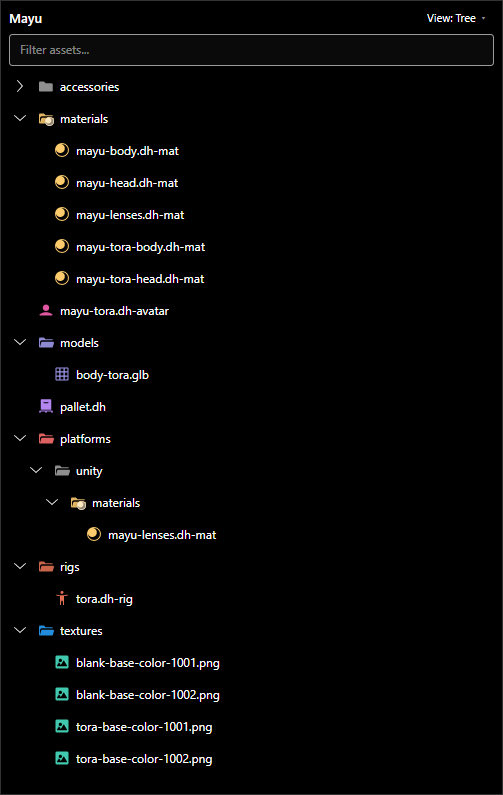
List view shows all assets flat, sortable by name or size:
Right panel
Section titled “Right panel”The right panel has five tabs. Selecting a file switches to the tab that suits it: Components for an object or an avatar, Inspector for anything with a preview (images, models, materials, maps) or a player (audio), Raw Edit for any other text format (looks, sidecars, JSON, pallet.dh), and Inspector for everything else. Turn Auto-Switch Tab off in Preferences to keep the tab you chose.
| Tab | Shown for | What it does |
|---|---|---|
| Inspector | Always | Metadata, import settings, dependents, an avatar’s generated proportions, the audio player, and the preview drawer |
| Components | .dh-obj, .dh-avatar | Says where an object’s components are edited |
| Reactions | .dh-avatar | Shows what the avatar’s reactions resolve to, with where each one was written |
| Raw Edit | Always | Edits a text file as text; read-only in View mode |
| Diagnostics | Always | The build log |
Inspector
Section titled “Inspector”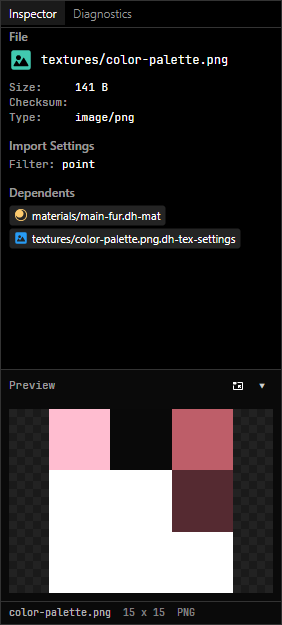
Shows metadata for the selected asset: file path, size, checksum, MIME type, import settings, and a list of dependents (other assets that reference this file).
The Preview drawer at the bottom displays a visual preview of the selected asset. Clicking the pop-out button opens the preview in its own window. The preview window is locked by default (indicated by the lock icon), meaning it stays on the current asset even as you browse; unlock it to have it follow your selection.
The gear icon (⚙) in the preview header opens Preferences to the Preview category, where you can configure 3D model rendering:
| Setting | Options | Description |
|---|---|---|
| Display Mode | Shaded, Unlit, Wireframe | How the model is rendered — lit with shading (default), flat base color only, or wireframe edges only |
| Wireframe Overlay | On / Off | Draws dark wireframe edges on top of the shaded or unlit model |
| Lighting Preset | Default, Front, Top, Side, Rim, Bottom | Direction of the key light (only applies in Shaded mode) |
A map previews as its thumbnail: the <map>.thumbnail.png beside the source, or the .dh-mapthumb companion from the last build when there is no source picture.
A map’s dependents and dependencies include its geometry, material slots, look, sky image and object instances, so selecting a .dh-look lists every map that uses it.
An avatar (.dh-avatar) shows its Proportions: what its body generates for a game to use, read from its compiled pallet (the pallet you are viewing, or in Edit mode the last build of the pallet you are editing; a pallet that was never built says so). It lists:
| Row | What it is |
|---|---|
| Eye height | The height the compiler measured and stamped into the avatar, and how it got it |
| Skull | The head’s main capsule, fitted from the mesh along the avatar’s forward: radius, height and center in avatar meters from the head bone |
| Protrusion | A second, thinner capsule for whatever sticks out ahead of the skull (a snout and jaw), or none for a round head |
| Outside both | How many of the head’s counted vertices neither capsule holds, and the bones that move most of them |
| Skull centering | How far the skull sits off the eyes’ midplane |
| Not counted | The head’s spring-driven vertices (ears, whiskers, swinging hair), which the fit leaves out |
| Fitted spring colliders | Every spring collider the compiler fitted to the body |
Above them the head fit is drawn from the side, with the front, side and top views to choose from: the head’s vertices colored by the bone that moves each one most, the skull and protrusion capsules, the eyes’ midplane and a 100 mm bar. Hair that no spring chain swings counts as solid head, so it widens the skull. The capsules and the audit are the same ones a game integration fits (today BONELAB’s NPCs); Override beside each capsule is a placeholder until per-avatar overrides of generated values exist.
An audio file (.wav, .ogg, .mp3, .flac, .aif) shows a player: play and stop, its length and format, and its waveform, decoded by the engine’s own decoder, so a file that plays here plays in the engine. Under it, Used by lists every reaction in the workspace that names the file, in avatar definitions and platform settings files alike; click one to open the file that names it.
Components
Section titled “Components”An object’s or an avatar’s components, part overrides and added records are edited in the Halcyon Studio, whose generated cards draw every component from its description, each departure ghosted against what it inherits. This tab says so; here the file is edited as raw text and built.
Reactions
Section titled “Reactions”For a selected avatar, every event and tier with what it runs once the whole inherits chain resolves, then the same again under each platform settings file that has reactions. Each action names where it was written (own, inherited or platform, and the file; click it to open that file), and every clip has a ▶ button. An event the avatar is silent on stays in the list, dimmed; a tier answered by the event’s untiered reaction says every tier. This is the same resolution dh reactions prints, read from the saved files.
Raw Edit
Section titled “Raw Edit”Opens any text format a pallet holds: every asset definition (.dh-avatar, .dh-obj, .dh-mat, .dh-tex, .dh-rig, .dh-map, .dh-look, .dh-vox, .dh-block), pallet.dh, the .dh-model, .dh-tex-settings and .dh-ids sidecars, and plain .json/.jsonc. In Edit mode, Save checks the text is valid JSONC before writing; in View mode it shows the compiled definition read-only. Other files show nothing here.
Diagnostics
Section titled “Diagnostics”Shows the full build log with tagged entries: INFO for standard progress, NOTE for cache hits and optimization details, and warnings or errors if something goes wrong.
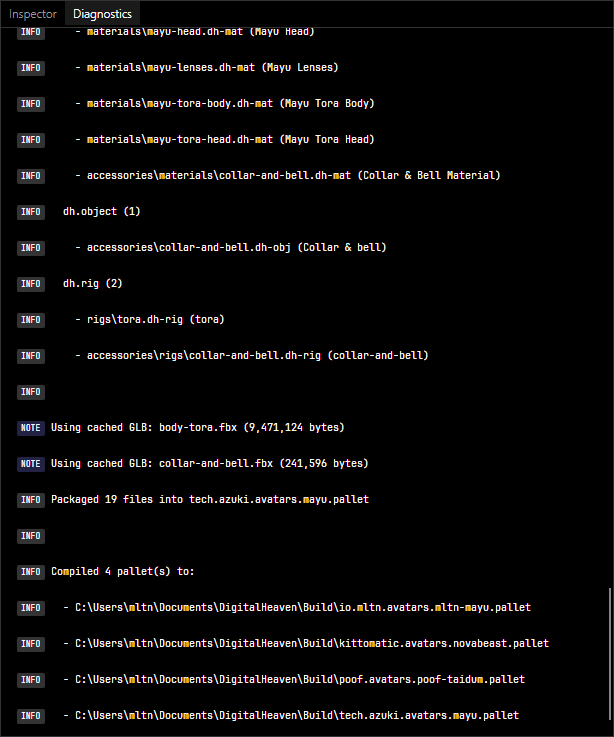
The log covers the entire build pipeline: definition parsing, reference validation, texture processing, model conversion, asset bundling, and final packaging. Each compiled pallet’s output path is listed at the end.
New Assets
Section titled “New Assets”In Edit mode, right-click in the asset browser and choose New Asset… to create a definition. Every definition kind is offered: Map, Material, Texture, Object, Avatar, Rig and Look. The file starts with its name, plus an empty components list for an object or avatar; a new map starts exactly as one made with the engine editor’s New Map.
Building
Section titled “Building”The top toolbar has two build-related controls:

| Button | Description |
|---|---|
| Build | Compile all pallets (same as dh build) |
| Watch | Toggle watch mode for auto-compilation on file changes (same as dh watch) |
The status bar at the bottom shows the result of the last build: pallet count, warnings, errors, and whether watch mode is active. Build output is shown in the Diagnostics tab.
Right-clicking a single pallet in the pallet list and choosing Build compiles just that pallet, same as dh build <pallet>: its dependencies are compiled too, but pallets that merely depend on it are not.
Navigation
Section titled “Navigation”
The back and forward arrows next to the DigitalHeaven logo in the top-left let you navigate through your browsing history, similar to a web browser.